
What to put in a header image
An App Store header image is one wide 3840 × 1646 picture that shows a single feeling of your app. It doesn't explain features. Your icon, name and Get button sit right below it, so the page already says what the app is.
Anyone who sees the header has already opened your page. What's left to tell them is how using the app feels, or where they'd use it.
When we made a lot of these, the ones that worked had one thing in common. They had one subject you could describe in three words, like "couple laughing at night" or "character climbing a white wall". If you can't say it that short, there's too much in it.
Sizes and the review process are covered in App Store product pages now have a header and a search results asset. This post is about choosing the picture, making it, and what real headers look like.
How to make one, step by step
As a solo developer, this takes about half a day.
- Pick one moment of using the app. The best-feeling one. For a recipe app, the finished plate. For a running app, the wrist mid-run.
- Pick a look: a photo, a 3D character, a flat illustration, or just your logo. Match the colors and mood of your icon and screenshots.
- Sketch it with the subject small and centered. Keep the edges to background only, like sky or a wall.
- Export at 3840 × 1646. If you also want it in search results, make the 5244 × 2950 universal asset instead. Transparency isn't allowed, so fill the background before saving as PNG or JPEG.
- Open the Header and Search Results tab in App Store Connect and switch between iPhone, iPad, portrait and landscape to check the crop.
- Submit it on its own from Asset Library in the sidebar.
If a photo shoot isn't realistic, image generation is the fastest route. sukuji's header image maker builds the header and the search results image from your app screens and a short description. The example pictures below were made with it.
Where to put the important part
The header gets cropped differently on each device. Apple doesn't publish the crop numbers. It only says to keep important content centered.
We keep the subject inside the middle 60% of the width and the middle half of the height. Text, faces and app screens go in there, and only background reaches the outside. We also keep the top edge and the two top corners clear. In our previews, that's where things got cut or hard to see most often.
Treat this as a guide and always check the preview. iPad in landscape can lose a lot from the top and bottom.
Real App Store header examples
Here are five headers that were live on the App Store in October 2026 and are worth learning from. Each has one subject and almost no text.
LINE
The app's two characters stand small on top of a huge green planet whose curve fills the bottom edge. Above is a pale sky with just two little clouds. The characters aren't drawn big; the empty space does the work. The green planet is the brand color itself.
Claude
An editorial photo of three people sitting quietly in a studio painted entirely in the brand's terracotta. Sheets of paper hang from the ceiling, and the color grade is warm, like film. There's no AI interface anywhere. It reads like a magazine cover, carried by the brand color and a calm mood.
Bump
A friend-location app that shows its own map world from above. Friends' round avatars and glowing hot spots are scattered everywhere, with the logo on a pill in the middle. Because it draws the world inside the app, people who've never used it still get it.
Airbnb
One photo of a lit treehouse deep in a forest, taken at dusk. The place you can book is the picture. If what you sell is beautiful, showing one of it large is the strongest move.
Disney+
Tall, slightly curved vertical strips sit side by side, each holding a different character or title, glowing at the edges. It shows the size of the catalog in a single frame.
Seven patterns you can borrow
Put real headers side by side and they fall into a handful of patterns. Here they are with examples we made in sukuji for made-up apps.
The first is the white bleed. Make the background the same white as the App Store page and let only the subject float. The edge disappears, so the header looks like part of the page rather than a picture on it.

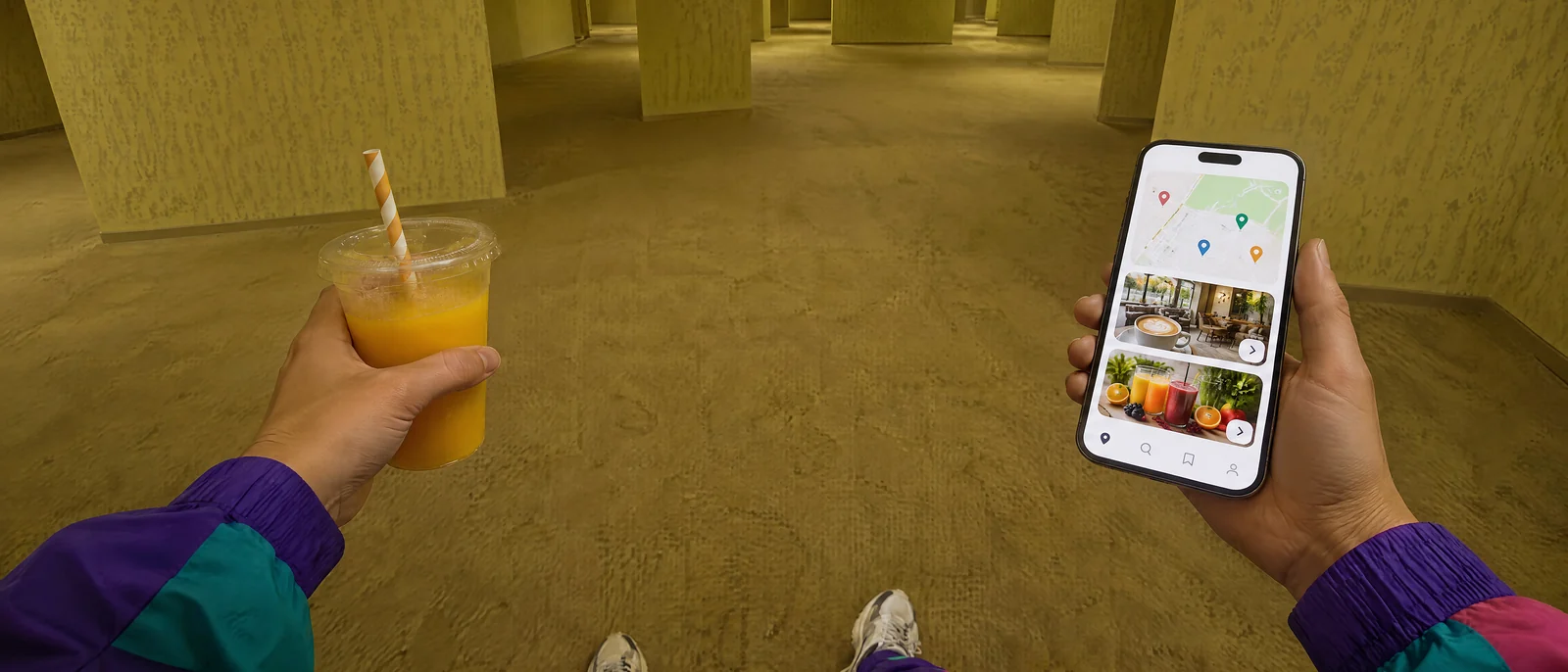
The second is first-person view. Your own hands are in the frame, holding a phone or a drink. Viewers feel like they're standing there.

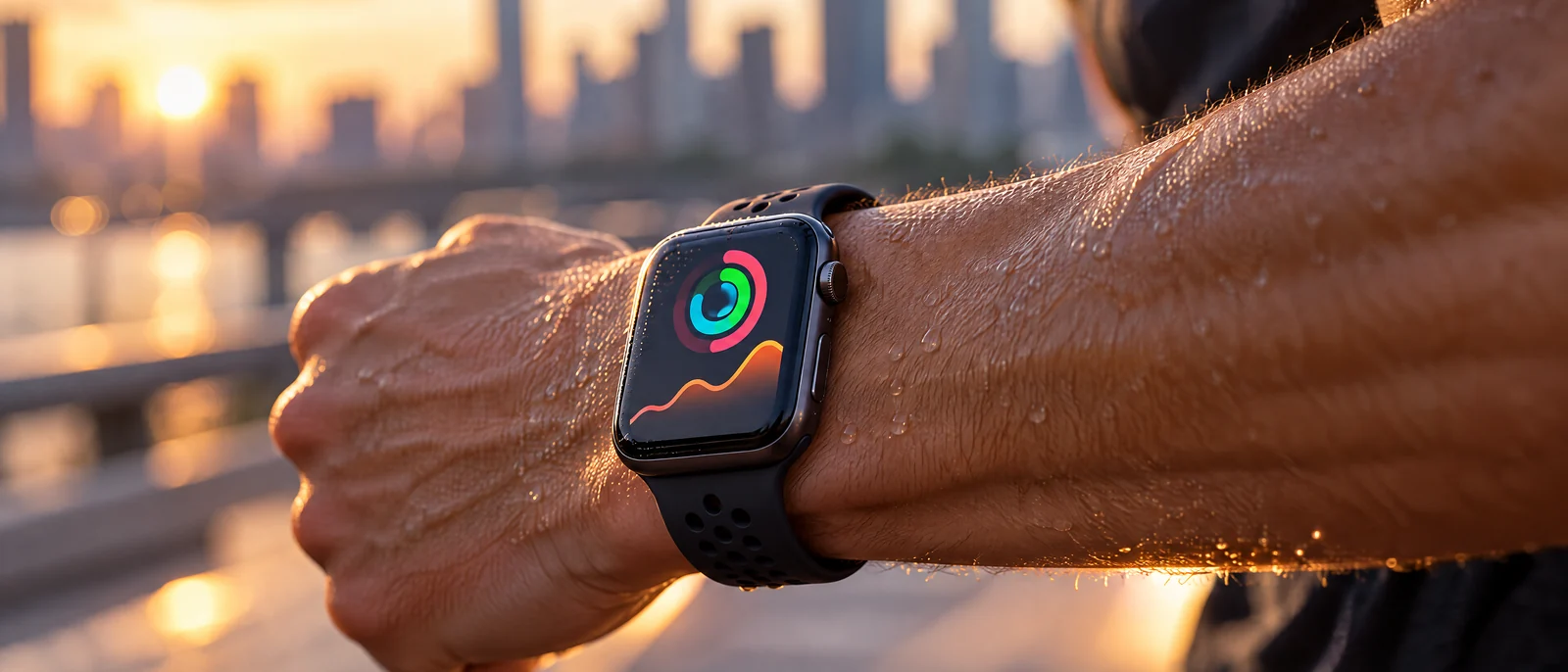
The third is the extreme close-up. Show only a runner's wrist and watch, and the story comes across better than showing the whole runner.
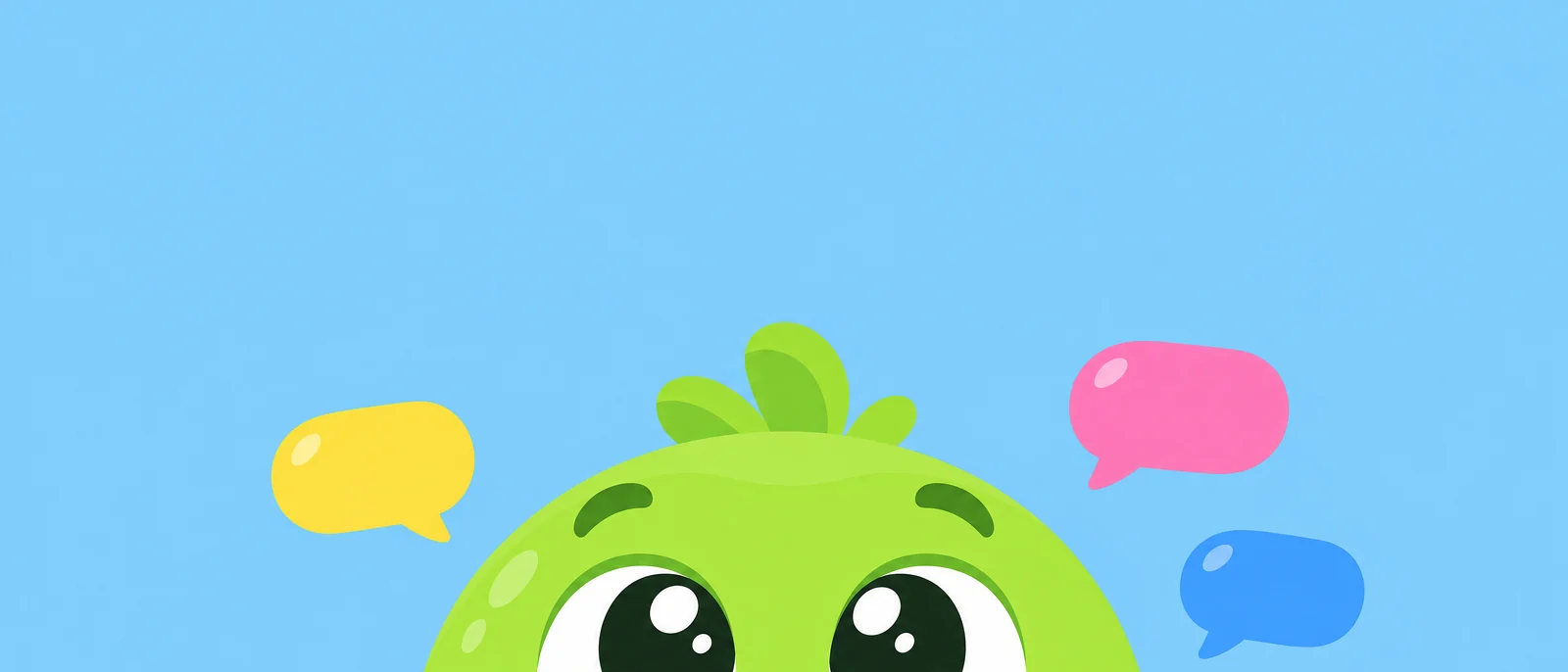
The fourth is peeking from the edge. When only your mascot's eyes rise from the bottom edge, the body seems to continue outside the frame. If your app has a character, try this one first.
The fifth uses camera texture. A night shot with a disposable camera's harsh flash gets its mood from how it was shot. It suits photo and video apps.
The sixth is a quiet logo. For meditation or sleep apps, which sell time spent doing nothing, a single frame with lots of space fits best.
The seventh is the flat poster. Draw one scene, like the sea and a ship, with simple shapes. It works for travel and planning apps that want to look lighter than a photo.


Common mistakes and how to fix them
The most common one is lining up screenshots sideways. Your screenshots appear right under the header, so the same thing shows twice. Draw the moment of using the app, not the screen.
The next is too many objects. A tabletop full of small props turns into noise on a phone screen. Keep one subject and remove the rest.
Avoid big text, too. The header is cropped differently on each device, so long lines get cut. You'd also have to remake it for every language. If you add words, keep it to a short line inside the safe middle area.
Prices, discounts, chart rankings, awards you didn't win and other platforms' logos aren't allowed and will be rejected. For a seasonal sale, show the season with the picture and leave the numbers out.
Finally, a header that clashes with your app's colors stands out the wrong way. Your icon sits right below it, so bring one color from the icon into the picture and the whole page comes together.
FAQ
What size is the App Store header image?
3840 × 1646. To reuse it in search results, make the 5244 × 2950 universal asset as a PNG. Specs can change, so check App Store Connect before you submit.
Can I put text in the header?
Yes, but keep it to a short line. It gets cropped per device, so place it in the safe middle area and make a version for each language.
Can I show my app's screen?
Yes. Since your screenshots follow right below, it usually reads better small, inside a scene of someone using it, than as a big screen on its own.
Will a header increase downloads?
It depends on the app. Product page optimization lets you test with and without a header for up to 90 days.
Pick the one pattern above that fits your app and sketch a single draft. Once the preview crop looks right, you can submit it the same day.